
Bitrix24
The Bitrix24 channel allows chatbots and agents to chat with customers via the Bitrix24 Open Channels.
To add Bitrix24: Go to Apps > Select "Create App" button > Fill out the information needed from the pop-up box.
Before Starting
Before starting, you must at least have a Bitrix24 Basic plan account to integrate Proto's chatbot.
Apps
Inside the apps tab, you can enable and disable Telegram.

Bitrix24 App
Within the Telegram App, you can manage the following:
Basics
Enable/Disable - make the channel live to the public
Name - edit the channel name within the AICX platform
Language - set the default language for customers using this channel
Icon - set the icon that will show for your chatbot
Delete - remove app

Configuration
Bitrix24 address - required to integrate the Bitrix24 channel

Important
Once a Bitrix24 channel is deleted, you will need to update the channel webhook information on your Bitrix24 Local Application configuration again.
Bitrix24 Local Application Setup
To add a chatbot on Bitrix24 Open Channel, you must create a Local Application on you Bitrix24 account:
Go to Bitrix24 Settings > My Bitrix24 > Bitrix24 Address > Create address/Use own domain and copy the address

Paste the address in the Proto Bitrix24 App Configuration to generate handler and installation path.

In your Bitrix24 account: select Applications > Developer Resources > Common Use Cases > Other.

Select Local Application.

In your Local Application configuration
select Server.
Copy Your handler path and Initial installation path from Proto AICX Bitrix24 app configuration and paste in the assigned fields.
Click Save.
Your Application ID and Application key will now be generated

Copy and paste this to Proto AICX Bitrix24 app configuration assigned fields then Save and Verify

Click Register to add your Bitrix24 chatbot.

How to Fix Verification Failed Error / Unable to Enable Bitrix24 Channel Error
In your Bitrix24 account: select Applications > Developer Resources >Integrations and see if your Local Application is successfully created.
Click REINSTALL in your Local Application and try to verify the channel again.

Bitrix24 Open Channel Setup
If you already have an Open Channel in your Bitrix24 Live Chat, you can add the Local Application chatbot as a first customer support tier to provide assistants to your customer before transferring the chat to a live agent.
To add the Local Application chatbot to your Open Channel, go to your Open Channel and click CONFIGURE.

Select the Chat Bots tab and tick Assign chat bot when a client enquiry is received. Select the chatbot you created in your Local Application.

Configure your chatbot settings as follow and Save the settings:
Activate chat bot - Each time a client starts conversation
Transfer conversation from bot to a live agent after - any period of time
Disconnect chat bot - after transferring the conversation to an agent
Note
In your Open Channel Auto Actions tab, if you have enabled the Use CRM form to ask for contact information in the live chat, please make sure to select Wait for customer's first message in the Show form field in order to pass the end user Contact ID to the chatbot.

Once finish setting up your Open Channel, you may start testing the chatbot through the Chat public link or the Open Channel in your Bitrix24 widget.
Identify end user in Bitrix24 Live Chat
For customers that are logged in to any of your services, you can add a widget.setUserRegisterData() JavaScript code to the page your website widget is connected to so your customers will not need to fill out the contact form again.
Note
This JavaScript code is use to identify the User in your Bitrix24 platform, if you need to use it to identify the end user in your Bitrix24 CRM Contacts, please add the end user email address in the position field.
Transfer Chats to Bitrix24 Agents
To transfer a chat to Bitrix24 agent from the chatbot, please add the Agent takeover block in the conversation flow where you would like to transfer the chat.
Enable the "Takeover by third party agents" and click Save.
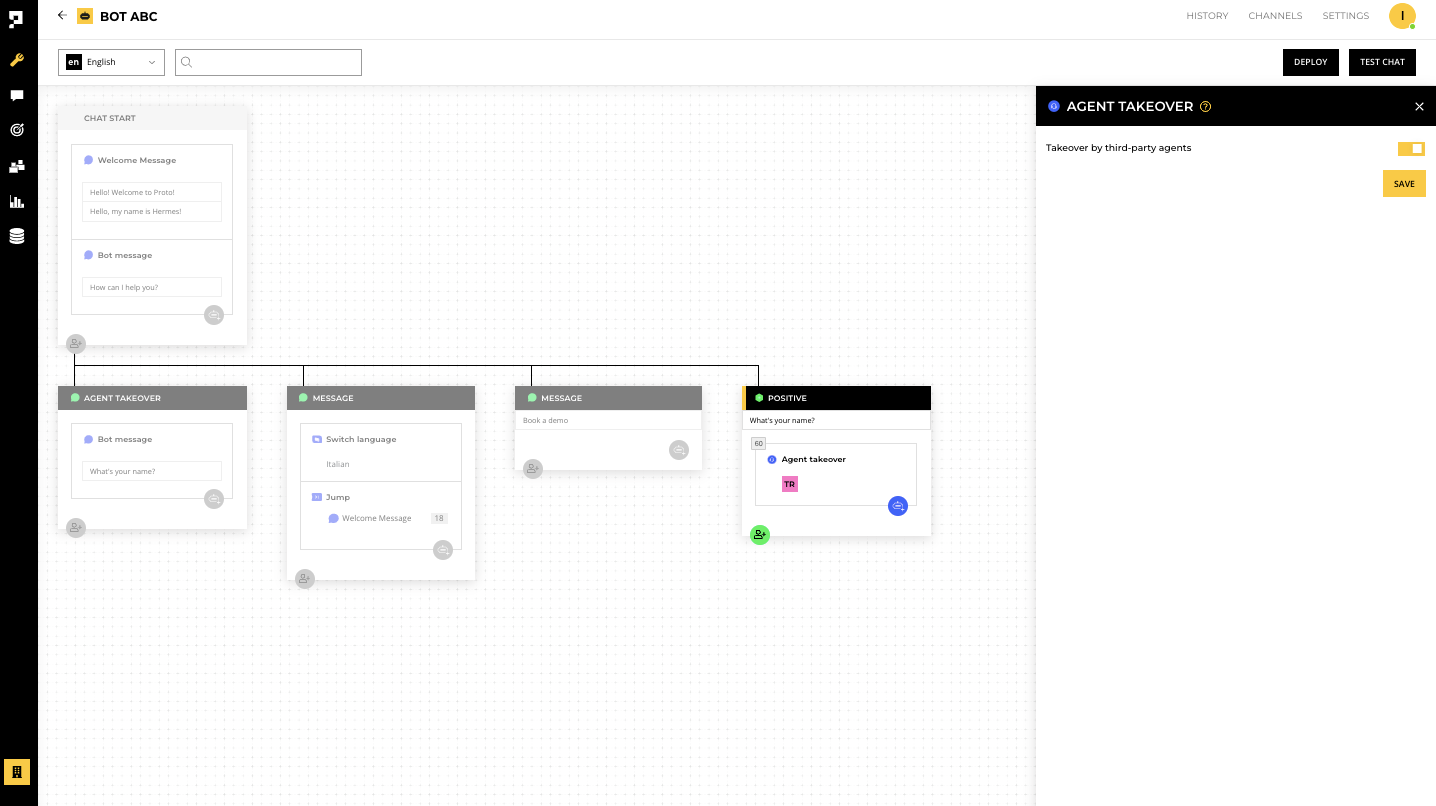
The chat session will automatically end on Proto's chatbot and transfer to the Bitrix24 Open Channel agents when the end user reach that conversation flow.
Note
Proto's platform will not store the chat that are transferred to Bitrix24 live agents. Only the conversation with the chatbot will be store in the chatbot History page.
Last updated